Mac, iPhone, iPad, Windows and Linux
Take the pages you need. Leave the rest.
PDF Extractor shows every page of a PDF at a glance. Tap the pages you want, type a range, or pick whole chapters from the table of contents, and save them as a brand-new PDF in seconds.
- Works on
- Mac, Windows, Linux, iPhone, iPad
- Requires
- See all platforms
- Data collected
- None
Preview
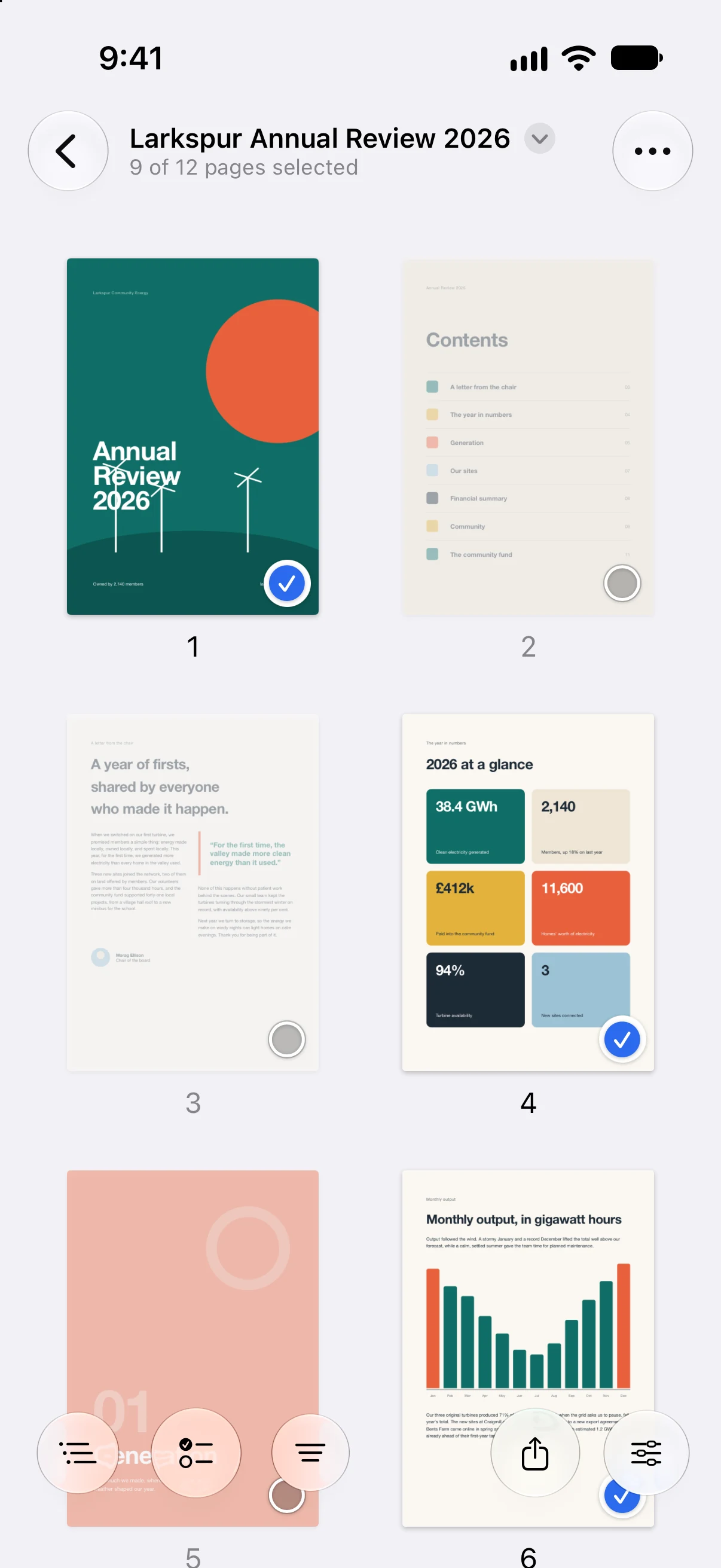
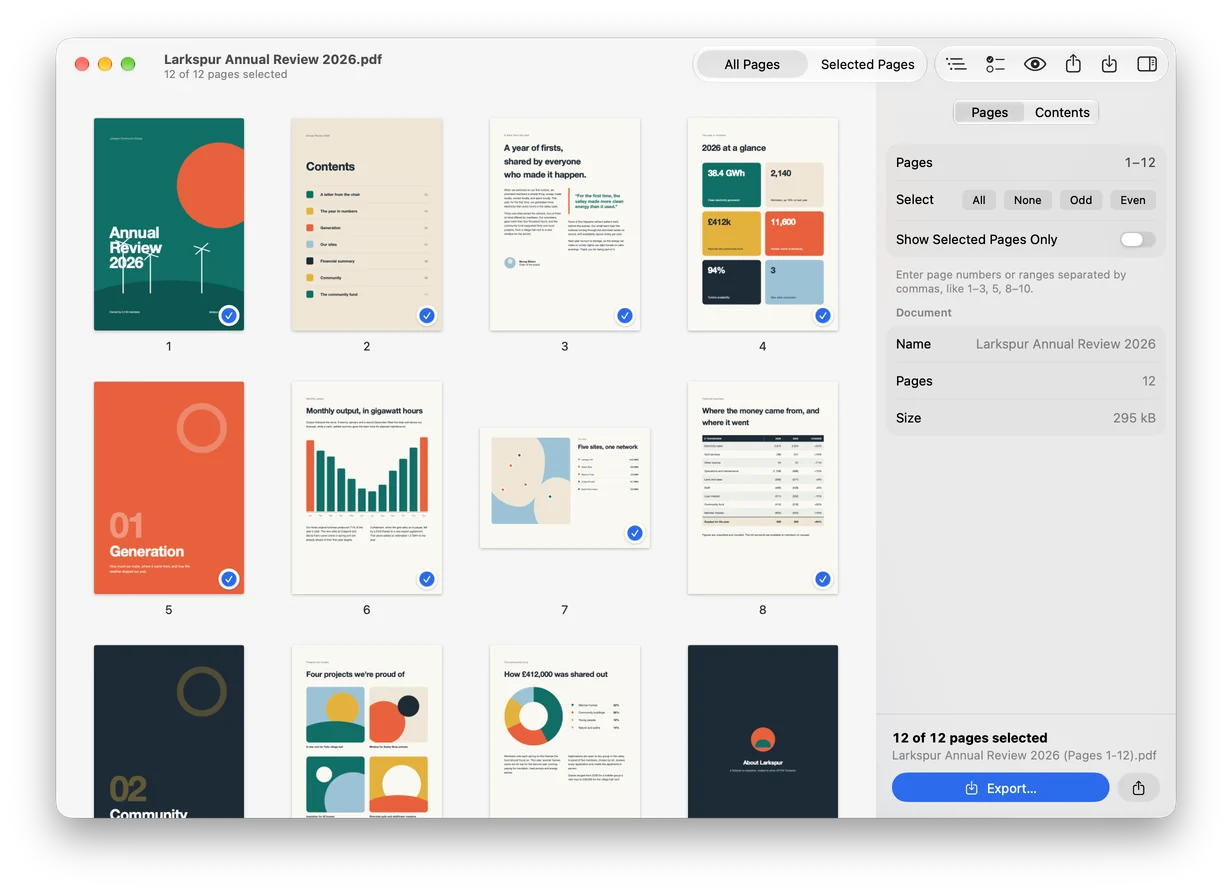
See the whole document at once.
Every page appears as a thumbnail, so you can find the pages you need without opening them one by one. Pick what you need, and the inspector shows exactly what you’re about to export.
- 01
Open
Open a PDF from your device, or drop it into a desktop window. The original stays exactly as it was.
- 02
Pick
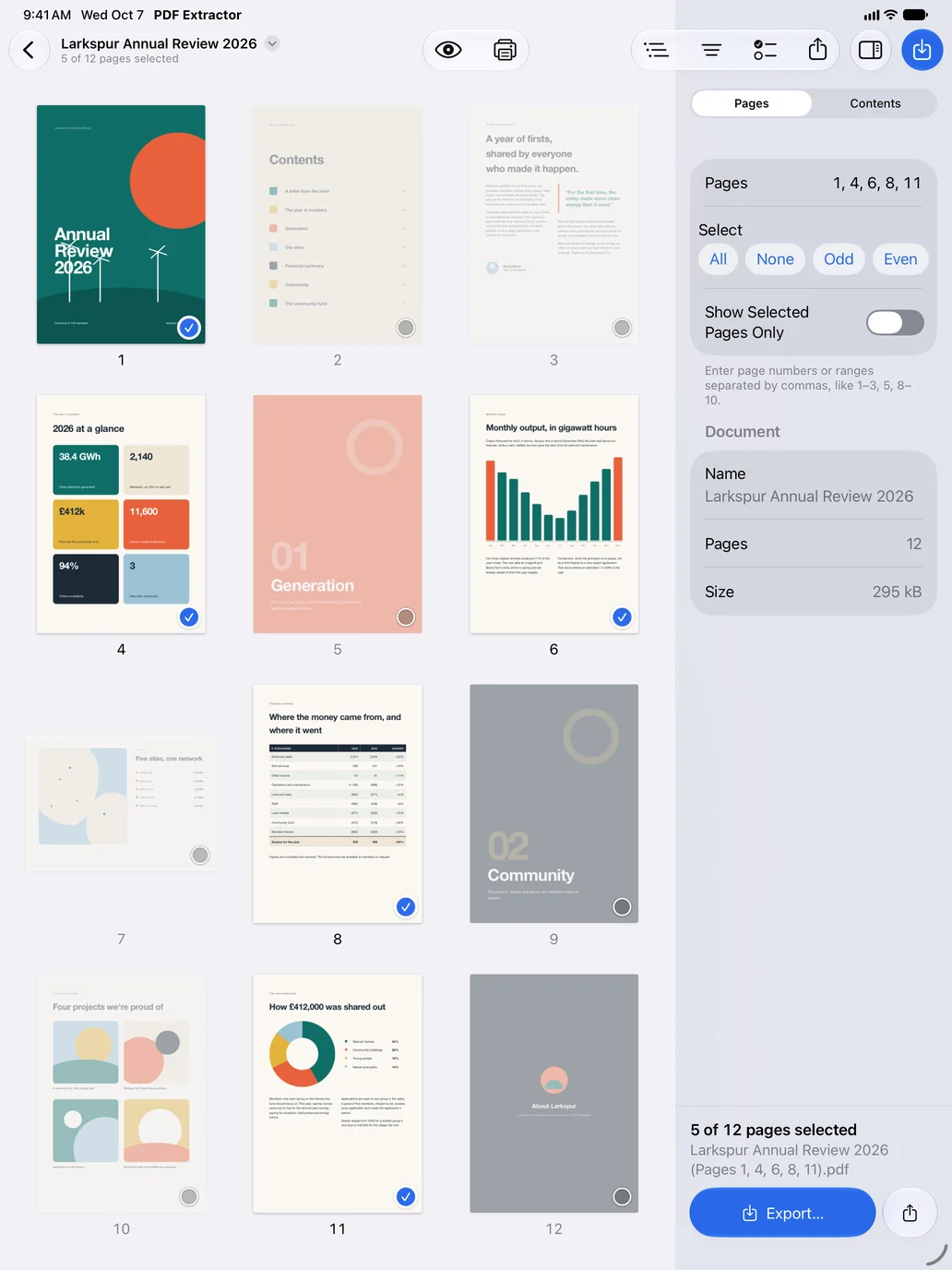
Tap the pages you want, type a range like 1–3, 8, or choose whole chapters from the table of contents.
- 03
Export
Save just those pages as a new PDF, ready to send. Add a password if you want to protect it.
New / Table of contents
Pick a chapter. Save its pages.
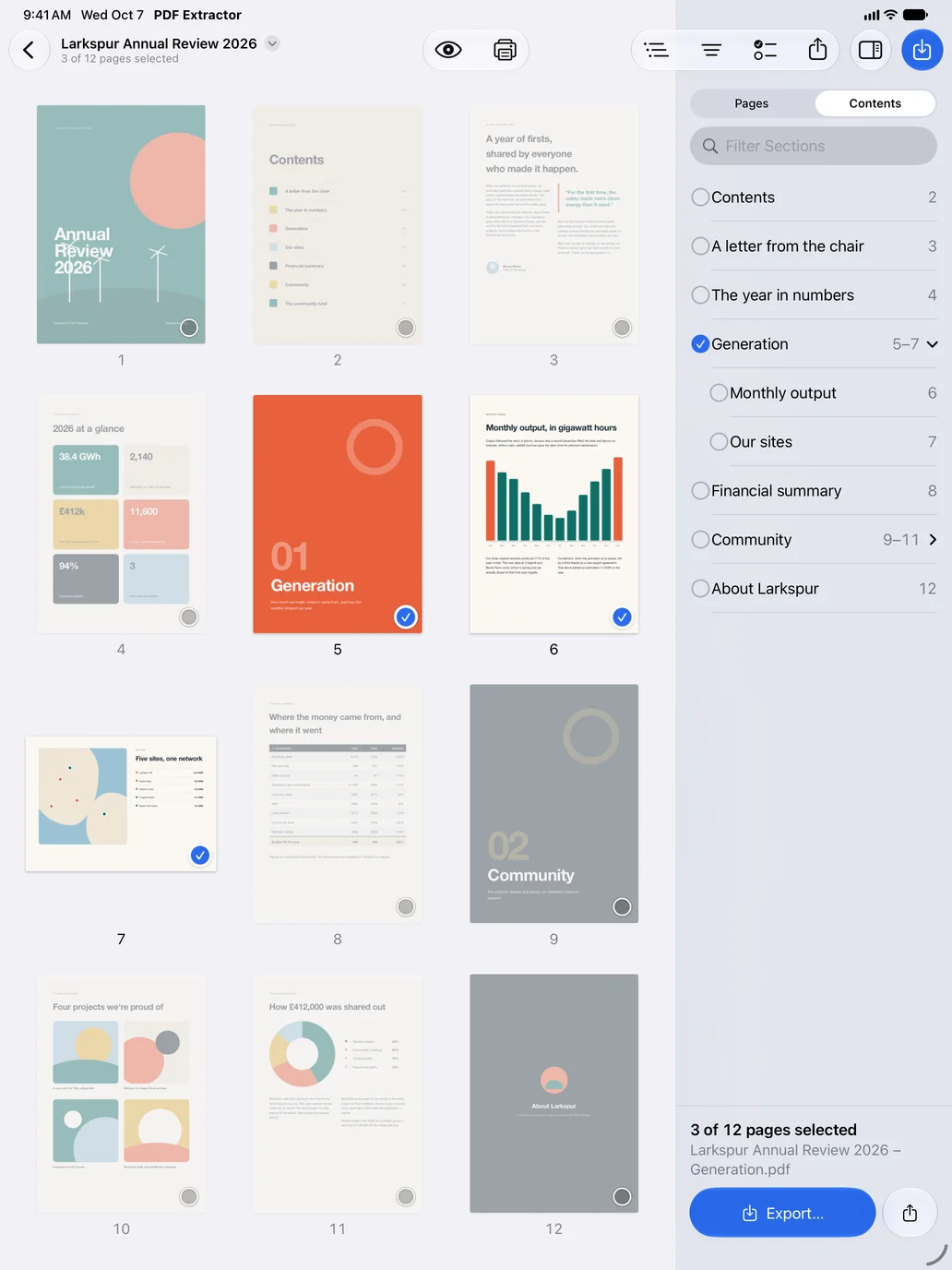
When a PDF has a table of contents, PDF Extractor lists its chapters and sections with the pages each one covers. Choose what you need and those pages are selected for you, with no page numbers to look up.
-
Include every section
Select a chapter to include all its sections. Combine as many chapters as you need.
-
Find any section fast
On Mac, iPhone and iPad, filter the table of contents by name, even in a manual with hundreds of entries.
-
Named after the chapter
On Mac, iPhone and iPad, the new PDF is named after what’s inside, like “Annual Review – Generation.pdf”.
-
Bookmarks come along
Mac, iPhone and iPad exports keep their table of contents, renumbered to match the new pages. Windows and Linux select chapters by bookmark; exported PDFs contain the selected pages without bookmarks.
Features
Everything you need to pull pages from a PDF. Nothing you don’t.
-
Every page at a glance
Pages appear as thumbnails, portrait and landscape side by side. Resize the previews and show only the pages you’ve picked to check before you export.
-
Select exactly what you need
Tap pages one by one, Shift-click to grab a whole run, type a range like 1–3, 5, 8–10, or pick chapters from the table of contents. All, None, Odd and Even are a click away.
-
Save a new PDF
Save a new PDF with a name that says what’s in it, like “Report (Pages 1-3).pdf”. On Mac, iPhone and iPad, you can also share, print or preview your selection with Quick Look.
-
Pages come out right
Text stays text, graphics stay sharp, and visible forms and annotations come along. The Apple apps also correct faulty crops and normalize rotated pages.
-
Password protection
Open locked PDFs with their password, and add a password to new exports on every platform. Turn on Encrypt PDF, enter and confirm your password, then save. Your original stays unchanged.
-
At home on every device
Native desktop apps for Mac, Windows and Linux, with menus, keyboard shortcuts and local file dialogs. On iPhone and iPad, use touch, a trackpad or a keyboard.
Try it
Type a range, or pick a chapter.
This works just like the inspector in the app. Try 2-5, 9, or 8- for page 8 to the end. Switch to Contents to choose whole chapters, or tap the pages themselves.
- Selected
- 5 of 12 pages
- File name
- Larkspur Annual Review 2026 (Pages 1, 4, 6, 8, 11).pdf
Privacy
All PDF processing happens on your device.
PDF Extractor works on Mac, Windows, Linux, iPhone and iPad without an internet connection. Open a PDF, select your pages and export them offline.
-
No uploads
PDF Extractor processes your PDFs on your device without uploading them.
-
No account
Open the app and get started. There’s nothing to sign up for.
-
No tracking
No analytics, no ads and no data collected. Ever.
Download
Get PDF Extractor.
For Mac, iPhone, iPad, Windows and Linux.
- Mac
- macOS 26 or later
- iPhone
- iOS 26 or later
- iPad
- iPadOS 26 or later
- Windows
- Windows 10 (2004+) or 11 · x64
- Linux
- Ubuntu 24.04+ or compatible · x64
- Apple version
- 1.1
- Windows / Linux
- 0.2.0
Linux requires an X11 or Wayland desktop with Qt 6.4+ and glibc 2.39+. Desktop installation guide
Questions or ideas? hello@buusmann.com